
When you start a blog,
- whether your articles have been indexed by Google,
- whether they appear in search results,
- and what keywords people use to find them
are all things you naturally become curious about.
Google Search Console is a useful tool for answering those questions.
In this article, I'll explain how to set it up and share the data I was able to see after the first month of running my blog.
What Is Google Search Console?
Google Search Console is a free website analysis tool provided by Google.
While Google Analytics (GA4) focuses on visitor behavior, Search Console helps you understand how your site performs in Google Search.
Examples of information you can view include:
- Impressions in search results
- Number of clicks
- Search keywords
- Indexing status
- Error reports
It is often considered an essential tool for bloggers.
How to Set Up Search Console
1. Access Search Console
First, visit Google Search Console.
Click "Start Now."
2. Add a Property
Register your website as a new property.
There are two registration methods.
Domain
Example
bitgardenlab.comThis option allows you to manage all subdomains as well.This option allows you to manage all subdomains as well.
URL Prefix
Example
https://bitgardenlab.comThe URL Prefix option is perfectly fine for beginners.
3. Verify Ownership
For WordPress users,
- DNS record verification
- HTML tag verification
are the two most common methods.
I chose DNS verification.
The interface varies depending on your hosting provider, but generally you only need to add the TXT record provided by Search Console to your DNS settings.
4. Submit a Sitemap
After setup is complete, submit your sitemap.
For WordPress with Cocoon, the sitemap is usually:
https://your-domain.com/sitemap.xmlThis is the sitemap URL.
In my case,
https://bitgardenlab.com/sitemap.xmlI submitted the sitemap above.
Submitting a sitemap helps Google discover your pages more efficiently.
The First Things to Check in Search Console
For beginners, there are two sections worth checking first.
Search Performance
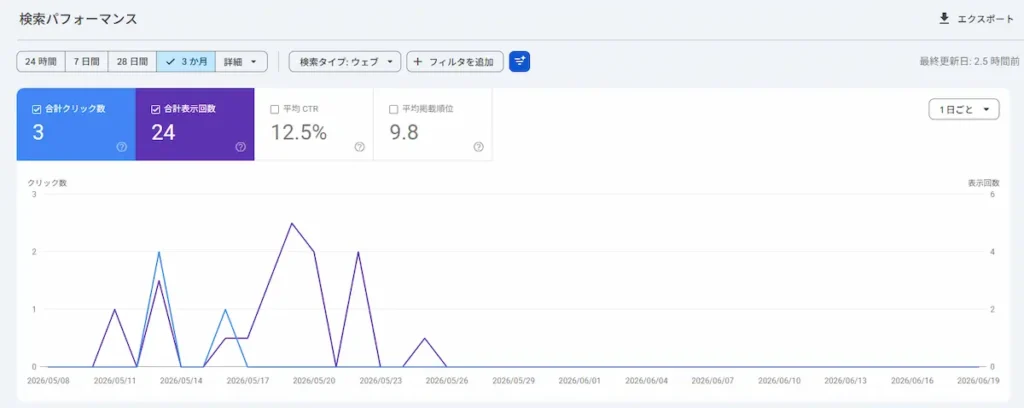
Here you can see:
- Number of clicks
- Impressions
- CTR
- Average position
These metrics help you understand how your site appears in search results.
It's completely normal to see small numbers when your blog is new.
Indexing
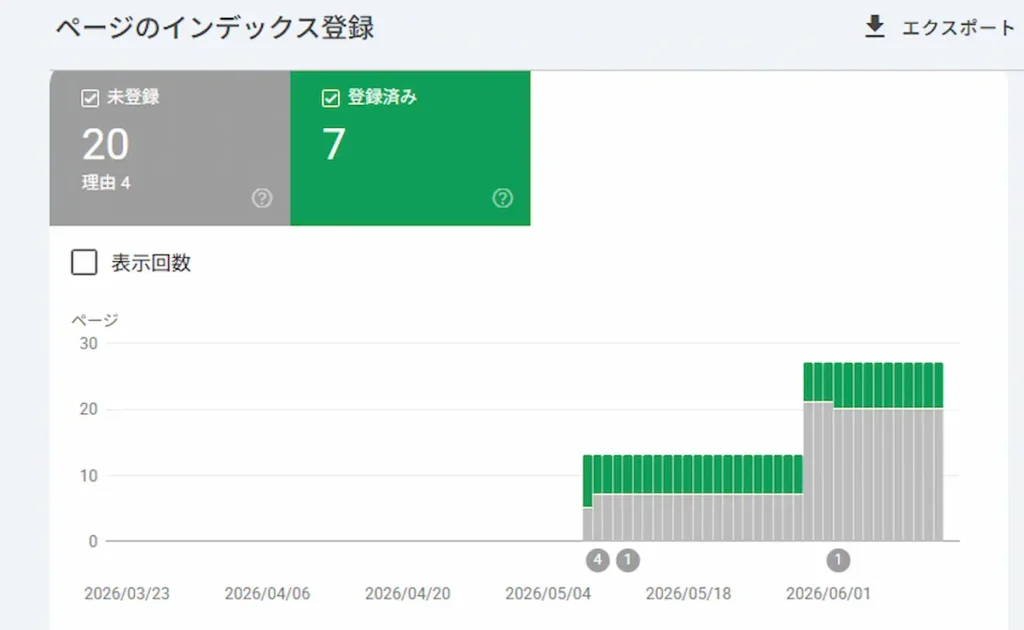
This section shows how Google is indexing your pages.
You'll see both indexed and non-indexed pages.
Actual Results After About One Month
These were the results for my blog:
- Total clicks: 3
- Indexed pages: 7
- Non-indexed pages: 20
The numbers are still small, but they confirm that visitors are already arriving through Google Search.
Is "Not Indexed" a Problem?
At first, I was a little concerned when I saw this.
However, after checking the details, I found categories such as:
- Page with redirect
- Excluded by 'noindex' tag
- Discovered – currently not indexed
- Crawled – currently not indexed
These were included among the non-indexed pages.
This appears to be quite common for new blogs.
In particular, "Discovered – currently not indexed" means that
Google knows the page exists but has not crawled it yet.
This is often seen on newly created websites with a limited number of articles.
How Is It Different from GA4?
When I was getting started,
I often wondered, "What's the difference between GA4 and Search Console?"
I thought so.
In simple terms:
| Tool | What It Shows |
|---|---|
| GA4 | Visitor behavior after arriving on your site |
| Search Console | Your site's performance in Google Search |
For example:
- How many times your pages appeared in search results → Search Console
- How many pages visitors viewed on your site → GA4
That's the basic difference.
I recommend setting up both tools.
What I Learned from Using It
I originally assumed that articles would appear in search results shortly after being published.
In reality, the process is:
- Google discovers the page
- Google crawls it
- The page is indexed
- The page appears in search results
I learned that several steps take place before a page becomes searchable.
If you're just starting a blog, setting up Search Console early can help you track your site's progress with confidence.
Conclusion
By using Google Search Console, you can monitor:
- Your visibility in Google Search
- Indexing status
- Search traffic
all from a single dashboard.
The setup process is not particularly difficult.
My blog is still growing, but I plan to continue monitoring its progress using Search Console.

Comment